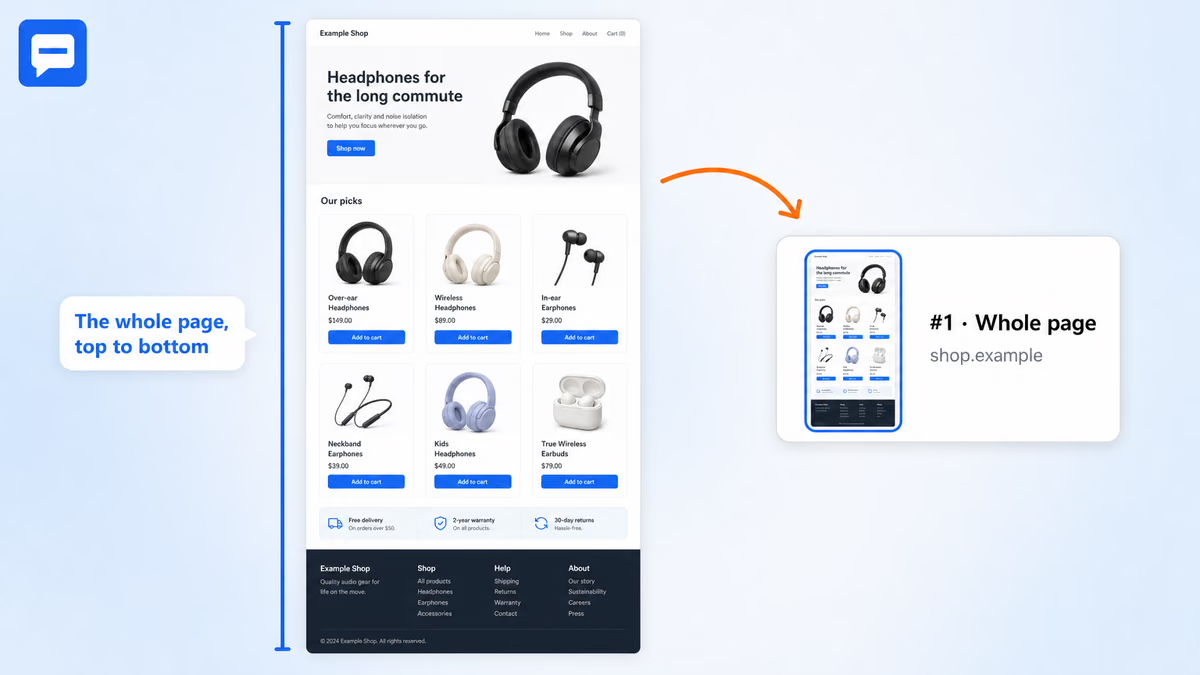
How to take a full page screenshot
- Open the page in Chrome and click the SiteAnnotation icon in the toolbar. The side panel opens, and the extension gets access to this tab.
- In Save from this page, press Whole page.
- Wait while the page scrolls. Chrome lets an extension take about two screenshots a second, so a long page takes a few seconds. Do not scroll or resize the window meanwhile.
- The page returns to where it was, and a new item appears in the panel with the image. Add a comment and press Add to report.
Whole page has no default keyboard shortcut. You can give it one in chrome://extensions/shortcuts, along with the other shortcuts.
What the screenshot contains
| Field | What is saved |
|---|---|
| Image | The page from top to bottom at the screen's own resolution, so text stays sharp on Retina and 4K displays |
| Page | Address and title of the page |
| Time | When the capture was taken |
| Environment | Viewport size and Chrome version |
| Comment | Your note, shown under the image in every export format |
Sticky and fixed elements are drawn once: a header that follows you down the page appears at the top, a chat button or a cookie banner appears where it first was, and they do not repeat across the image.
Full page or one element
When you need one long block and not the whole page, for example a long table, a pricing section or a comment thread, use Block instead. Click the element and you get a screenshot of just that element, stitched in the same way if it is taller than the screen, together with its HTML and CSS rules.
To capture only what you see, use Area and drag around the part you need.
Mark up and export
The full page image opens in the editor like any other screenshot. Number the problems on it, put arrows and frames on them and blur private data before you share it: see screenshot annotation.
Then export the report to PDF, Word, HTML or Markdown. In PDF and Word a long image goes to paper at full width, split into page-high strips; HTML and Markdown keep it as one image. How export works.
A full page screenshot in a finished report: the website audit report template and sample.
Limits
- Very long pages are cut. One image can be at most 16,384 pixels tall, which on a Retina screen is about 8,000 pixels of page. The item then says how much of the page it shows.
- Pages that load more content as you scroll are taken as long as they are when you press the button.
- Content inside an iframe is captured as it looks on the page, but the frame does not scroll by itself: only the main page is scrolled.
- Chrome does not let extensions capture
chrome://pages, the Chrome Web Store, the built-in PDF viewer and error pages. Which pages are off limits.