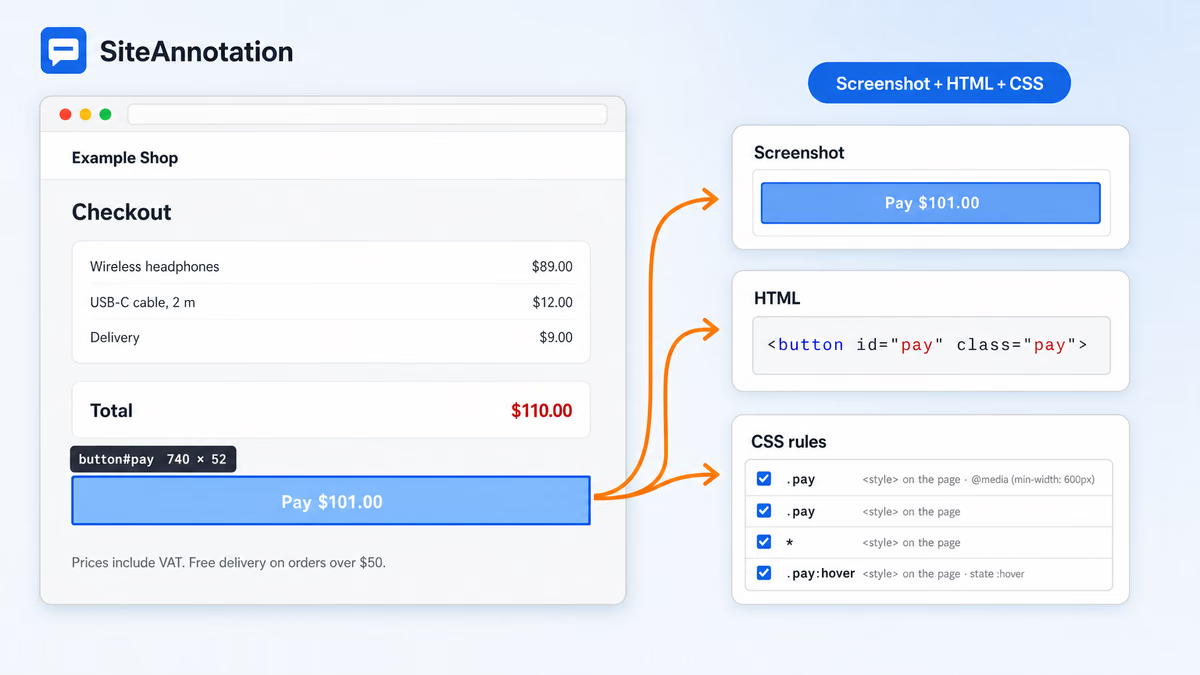
How to capture an element
- Click the SiteAnnotation icon in the Chrome toolbar to open the side panel on the page.
- Press Block, or press Alt+Shift+E, or right-click the page and choose Block.
- Move the pointer over the page. The element under it gets a frame and a label with its selector and size.
- Use the arrow keys to adjust: ↑ takes the parent element, ↓ goes back to the smaller one. Press Enter or click to pick, Esc to cancel.
- Look through the CSS rules in the new item, untick those that do not matter, add a comment and press Add to report.
What the item contains
| Field | What is saved |
|---|---|
| Screenshot | The element alone, stitched from several screens if it is taller than the window |
| HTML | The element's outer HTML, up to 50 KB, with form values and tokens masked |
| Selector and XPath | A CSS selector and an XPath that find this element on the page |
| CSS rules | Every rule that applies to the element, in cascade order |
| Page | Address, title, time, viewport size and Chrome version |
| Comment | Your note |
How the CSS rules are collected
The rules are the same that the Styles tab of Chrome DevTools shows for this element, in the same order. For each rule you see:
- the selector and the declarations;
- where the rule comes from: a stylesheet file or a
<style>block on the page; - the
@mediaconditions it sits under.
Rules for states such as :hover, :focus or :active are collected in a separate group: they do not apply at the moment of the click, but they are often the reason for a bug report.
When a site serves its stylesheet from another domain, Chrome hides its rules from extensions. SiteAnnotation then downloads that stylesheet once more, without cookies, and reads the rules from the copy. Nothing else is sent anywhere.
Untick the noise
A button on a large site can have 30 rules, most of them resets and theme variables. Untick the ones that do not matter, and only the rules you left go into the report.
A developer who opens the report sees which element you mean, what it looks like and which CSS made it look so, without opening DevTools and reproducing the page.
Use it in a report
Mark the screenshot of the element in the editor: screenshot annotation. When the whole page is the context, add a full page screenshot next to the element. The HTML and CSS go into every export format. What goes into each format.
See it in a finished report: the bug report template and sample shows a broken button captured as a block.
Limits
- An iframe is picked as one element: you get the frame whole, not the elements inside it.
- Elements inside Shadow DOM, open or closed, can be picked.
- HTML longer than 50 KB is cut, and the item says so.
- Chrome does not let extensions into
chrome://pages, the Chrome Web Store and the built-in PDF viewer. Which pages are off limits.