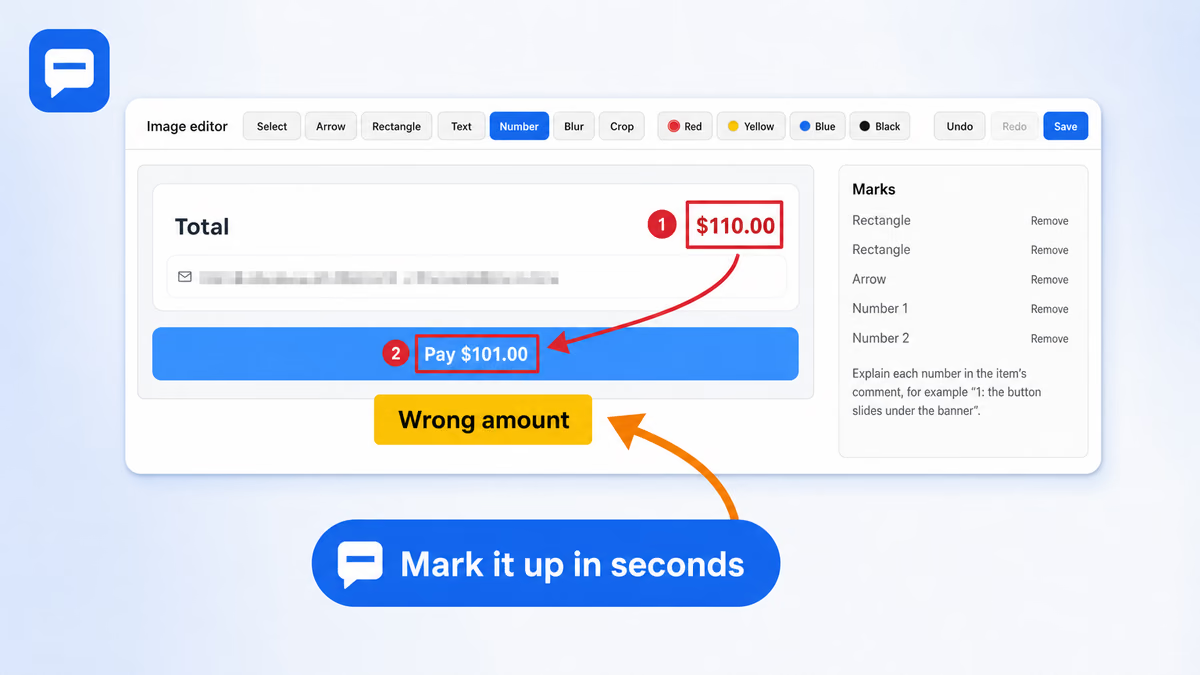
How to mark up a screenshot
- Capture an area, the whole page or an element. The new item appears in the SiteAnnotation side panel.
- Press Mark up image under the screenshot. The editor opens in a new tab.
- Pick a tool and a color, then draw on the image.
- Press Save and return to the panel. The marked image replaces the original in the report; the original is kept.
Tools
| Tool | What it is for |
|---|---|
| Arrow | Point at the place you mean |
| Rectangle | Frame a button, a price or a block of text |
| Text | A short label right on the image |
| Number | Numbered badges 1, 2, 3 when one screenshot shows several problems |
| Blur | Hide e-mails, names, prices or anything you do not want to share |
| Crop | Keep only the part that matters |
Colors: red, yellow, blue and black, enough to stand out on a light or a dark page.
Every mark is a layer
Marks are not burned into the picture while you work. The list on the right shows every mark; select one to move it, or remove it. Undo and Redo step through your edits. You can open the editor again a day later and change the marks: they stay editable.
Numbers that match the comment
Put badge 1 on the price and badge 2 on the button, then explain them in the comment: "1: the total is $110.00, 2: the button charges $101.00". The developer reads the list and sees each number on the image, without guessing which arrow means what.
Items of the report are numbered too (#1, #2, #3), and the numbers stay the same in PDF, Word, HTML and Markdown, so "see #4, badge 2" points at one place in any format.
Blur before you share
Blur what is visible on the screenshot: e-mails, names, order numbers. Exported files contain only the blurred image. A report backup keeps the original under the blur so that you can edit it later, so share a backup only with people who may see the whole screenshot.
Values of form fields, tokens and session ids in captured HTML and addresses are masked automatically, before anything is saved. What the extension masks.
Where the screenshots come from
The editor works with every capture that has an image: an area or a full page screenshot and an element with its HTML and CSS. After markup, put the items in order, write an introduction and export the report: reports and export.
A marked-up screenshot in a finished report: the bug report template and sample.
Limits
- The editor marks up screenshots taken by SiteAnnotation; it does not open image files from your computer.
- Marks are drawn on a still image, not on the live page.